How to Connect Claude AI to Framer Using MCP (Step-by-Step)

If you've ever wished you could control your Framer project with AI, like renaming CMS items, updating content, or restructuring pages just by typing a prompt, you're gonna love this. In this guide, you'll learn exactly how to connect Claude AI to Framer using the MCP plugin, so you can start managing your Framer projects through typing.
The whole setup takes about two minutes, and you don't need any coding experience to pull it off.
What You'll Need
Before getting started, make sure you have these two things ready:
• A Pro Claude account. The free tier won't work for this since MCP connectors require a paid plan.
• A Framer account, either free or premium. Both work just fine.
That's it. No APIs to configure, no tokens to generate. Just these two accounts and you're good to go.
Step 1: Grab the MCP URL from Framer
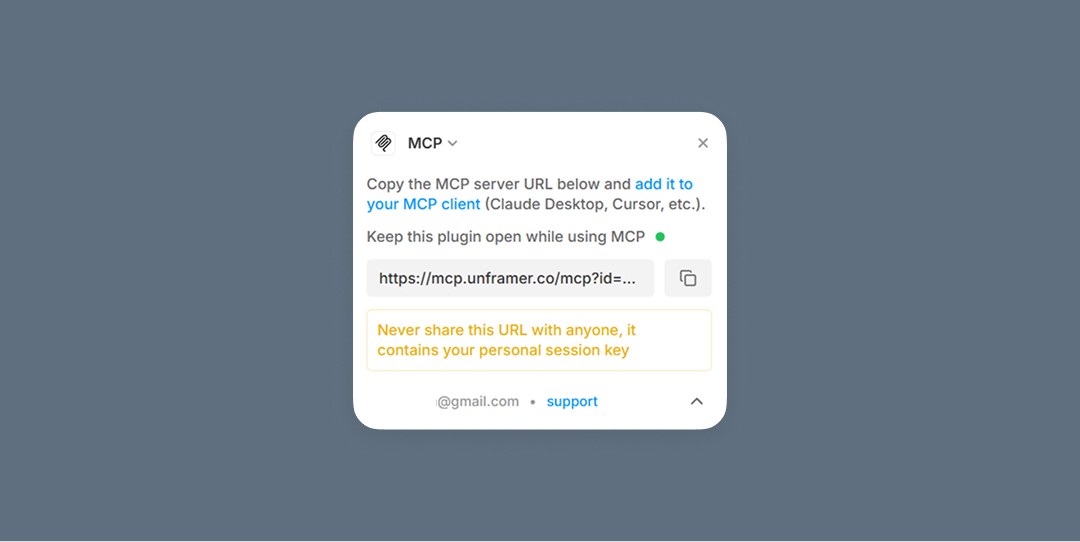
Open your Framer project and press Ctrl + K (or Cmd + K on Mac) to open the command bar. Search for "MCP" and open the MCP plugin.
You'll see a URL link inside the plugin window. Go ahead and copy it. There's also a status indicator: if it's green, you already have an active MCP connection. If it's red, that just means no connection has been set up yet, which is totally normal for first-timers.
Step 2: Add a Custom Connector in Claude
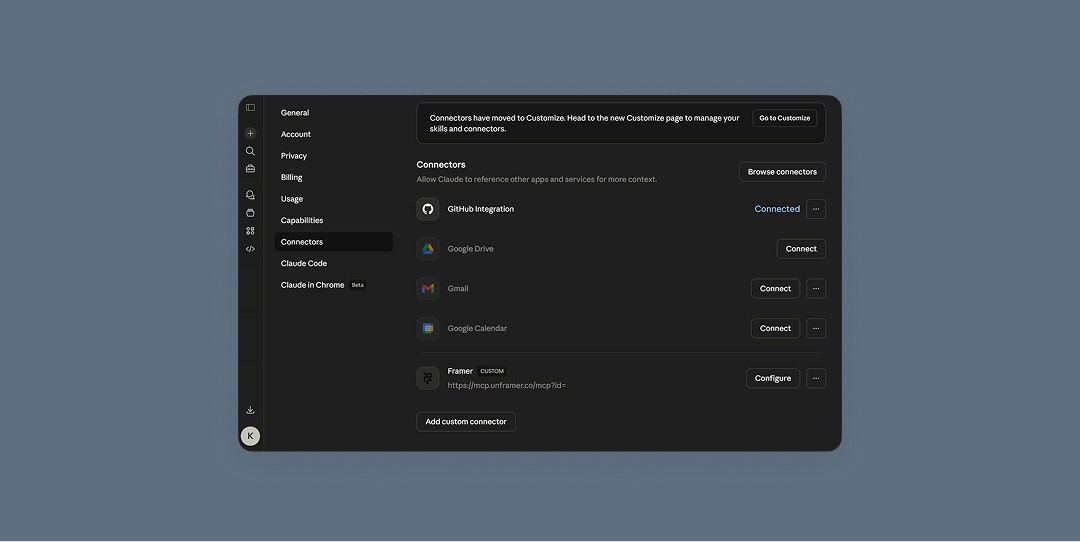
Now head over to Claude. Click on your account icon, go to Settings, and then navigate to Connectors.
You'll see a list of pre-built connectors for various services, but Framer isn't listed there by default. No worries. Just click "Add custom connector", give it a name (something like "Framer MCP"), and paste the URL you copied from the Framer plugin.
Hit add, and that's the connection done.
Step 3: Tell Claude Which Project to Connect To
Here's the part that feels a bit like magic. Back in your Claude chat, simply type something like:
"Connect to my [project name] project in Framer."
If you have multiple Framer projects open, Claude will look through them and find the exact one you're referring to. Once it locks in, you'll see a confirmation that the connection is active.
One important thing to keep in mind: make sure you're on the Framer canvas, not inside the CMS editor. The MCP plugin needs to be running on the canvas level to communicate properly with Claude.
Step 4: Start Controlling Your Framer Project with AI
This is where it gets fun. Once connected, you can ask Claude to do things like:
• Rename CMS collection items in bulk
• Update content fields across multiple entries
• Read and analyze your current CMS structure
• Add new items with pre-filled data
For example, if you have a CMS collection called "Categories" with items like "Basics", "Pro Tips", and "Updates", you could ask Claude to rename them to "Design", "Content", "Video", and "Code". It'll handle it in seconds.
Just describe what you want in plain language, and Claude will figure out the rest.
Why This Matters for Framer Users
Managing CMS content in Framer can get repetitive, especially when you're dealing with dozens of entries, categories, or structured content. By connecting Claude through MCP, you're essentially giving yourself an AI-powered assistant that can read your project structure and make changes on your behalf.
It's particularly useful for:
• Batch updates: renaming, re-categorizing, or editing multiple items at once.
• Content generation: having Claude draft descriptions, blog posts, or metadata directly into your CMS.
• Project exploration: asking Claude to summarize your site structure or find specific items without clicking through pages manually.
Quick Recap
Here's the full process at a glance:
1. Open the MCP plugin in Framer (Ctrl/Cmd + K, search "MCP") and copy the URL.
2. In Claude, go to Settings > Connectors > Create a custom connector and paste the URL.
3. Ask Claude to connect to your specific Framer project by name.
4. Make sure you're on the Framer canvas (not inside CMS) for the connection to work.
5. Start prompting Claude to manage your CMS, rename items, update content, and more.
That's really all there is to it. Once you've done it once, you'll wonder how you ever managed your Framer CMS without it.