How to Password Protect a Single Page in Framer (Free Component Included)
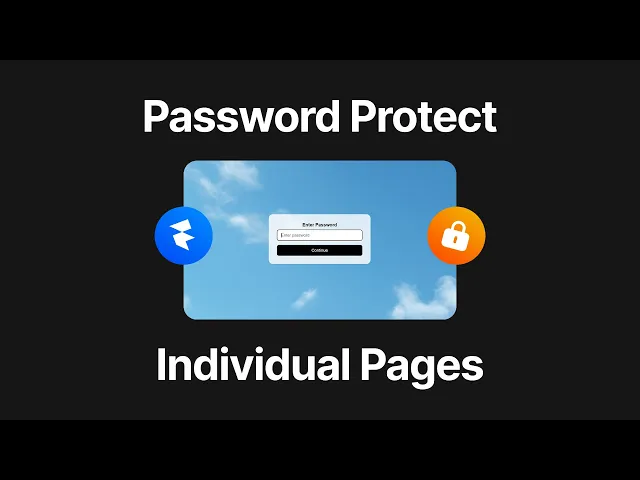
Password-protecting an individual page is one of the most requested features in the Framer community, and Framer doesn't have it built in by default. The good news is you can add it in under two minutes using a free component built with AI on Gamraat. Here's exactly how to do it.
Why password protect a single page in Framer
Framer's built-in site-wide password protection is great when you want to lock down an entire project, but it doesn't help when you only need to gate one page. Common use cases include:
Sharing a client preview without exposing the full site
Locking a hidden landing page for a specific campaign or partner
Hiding a beta page from public view
Sharing private content with a small group
Until Framer adds this natively, the cleanest workaround is dropping a password modal component onto the page you want to protect.
Step 1: Get the component from Gumroad
Head to the Gumroad page and grab the password-protected component. Once you have the component selected, press Ctrl + C (or Cmd + C on Mac) to copy it.
Step 2: Paste it into your Framer page
Open your Framer project and click on the page you want to password protect. Press V to switch to the select tool, then paste the component with Ctrl + V. The component will land somewhere on your canvas.
Step 3: Set the position to absolute
Select the component and change its position type from relative to absolute. Set the top value to 0 and the left value to 0. This anchors the modal to the top-left of the page so it covers everything correctly.
Step 4: Set the size to 1px by 1px
This part feels counterintuitive but it's correct. Set both the width and height to 1 pixel. The component handles its own full-screen rendering through internal layout logic, so a 1x1 frame is all that's needed on the canvas.
Step 5: Customize the password
In the properties panel on the right, you'll see a password field. The default is 5555, but you can change it to anything you want. For example, type in your own password like "costa" and the modal will only let visitors through if they type that word in.
If you preview the page and click "continue" without typing the password, nothing happens. Type the correct one, and you're in.
Step 6: Customize the background
The component supports both image and color backgrounds. By default it uses an image, but you can switch to a solid color from the right panel. White, black, or a brand color all work fine. In most cases an image background looks the most polished, especially with a slight blur or overlay.
Step 7: Publish and test
Hit publish on your Framer site, then refresh the live URL. You'll only see the password modal, with the rest of the page hidden behind it. Type your password and the page reveals itself.
Important: this is interaction, not real security
One thing to be very clear about: this component doesn't actually hide your page content. The password and the rest of the page are still visible in the page's source code. Anyone who knows how to open browser dev tools can see everything in seconds.
Use this for casual gating like client previews, friendly access control, or simple campaigns. Don't use it to protect sensitive information, paid content, or anything that actually needs to stay private. For real security, you'd need server-side authentication (which Framer doesn't natively support yet).
Wrapping up
That's the full setup. A two-minute trick that adds a password gate to any individual Framer page using a free AI-built component. It's a great fix until Framer ships native per-page password protection.
If you have questions, drop them on the YouTube video. The component link is in the video description and on the Gamraat page.