How to Upload a Video with Transparent Background in Framer

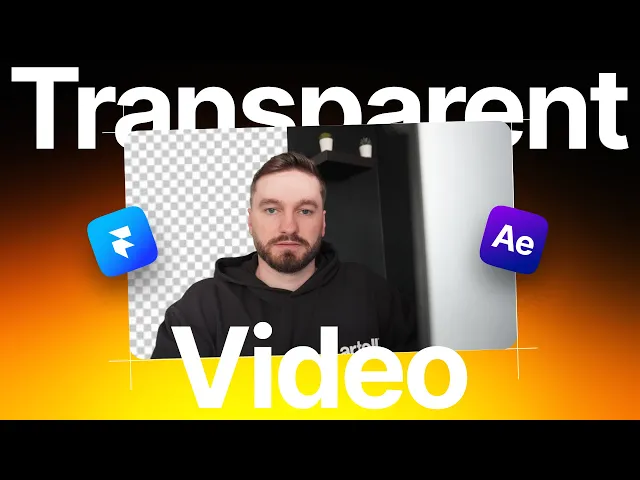
You've probably seen those slick websites where a video plays with no visible background, almost like it's floating on top of the page. It looks great, and you might assume it's some complex trick. But it's actually not that hard to pull off in Framer once you know the format you need.
In this guide, you'll learn how to export a video with a transparent background from After Effects, convert it to the right format, and upload it to Framer so it plays exactly the way you want.
Why You Can't Just Use an MP4
Here's the thing most people don't realize: regular MP4 files don't support transparency. If you export a video with a transparent background as MP4, you'll just get a black or white background behind it. Not exactly the look you're going for.
The format you need is WebM. It's currently the only widely supported video format on the web that handles alpha transparency. That's what you'll see if you inspect any website that has this kind of effect.
What You'll Need
• Adobe After Effects for creating or preparing your animation with a transparent background.
• CloudConvert.com for converting your export to WebM format.
• A Framer account (free or premium).
If you're working with 3D objects and want them to have a transparent background too, you'd first create your animation in something like Blender or Cinema 4D, export it as an image sequence, and then bring those sequences into After Effects. From there, the process is the same. You can also create basic 3D objects directly inside After Effects if you don't need anything too complex.
Step 1: Export from After Effects with Alpha
Open your composition in After Effects. Before you export, make sure the transparency grid is visible. You'll see that little checkerboard icon in the composition panel. Click it so the background shows as transparent instead of a solid color.
Now go to File > Export > Add to Render Queue.
Important: use "Add to Render Queue", not "Add to Adobe Media Encoder Queue". They're different, and the Render Queue is what you want here.
Click on Output Module and change the format to QuickTime. Then go to Channels and switch it from RGB to RGB + Alpha. This is the key setting that preserves the transparency information in your export.
Click OK, choose where you want to save the file, and hit Render.
Step 2: Convert to WebM
After Effects doesn't export WebM natively, so you need a converter. Head over to cloudconvert.com and upload the .mov file you just exported.
The site will automatically detect the file type. Now click the output format dropdown and search for WebM. Select it and hit Convert.
It should only take a few seconds for smaller files. Once it's done, download the converted WebM file.
Step 3: Upload to Framer
Here's one small gotcha: you can't just drag a WebM file onto the Framer canvas. If you try, you'll get a "file type not supported" error. But there's a simple workaround.
Go to the Insert menu in Framer and search for Video. Drag a video element onto your canvas, then switch the source to Upload and select your WebM file.
And that's it. Your video will show up with a fully transparent background, and the animation will play just like you'd expect.
Quick Recap
1. In After Effects, make sure the transparent background grid is active.
2. Export via Render Queue using QuickTime format with RGB + Alpha channels.
3. Go to cloudconvert.com and convert the .mov file to WebM.
4. In Framer, insert a Video element, switch to Upload, and select your WebM file.
5. Don't drag the file directly onto the canvas. Use the Insert > Video method instead.
It's a clean workflow once you've done it a couple of times, and the end result looks fantastic on any Framer site.